Stitch Surgeon — user manual
Packs individual sprites into a texture atlas with live preview — shelf or fixed-cell layout — and exports PNG, WebP, PVR, or KTX2 plus optional hash JSON.
1. What Stitch Surgeon is
Stitch Surgeon is a texture atlas packer and sprite-sheet builder — not a tile-edge tool and not a map editor. You bring individual sprite images; the app packs them onto one sheet (or extra sheets when they do not fit) and can write frame metadata beside it.
- Shelf packing — sprites sit in horizontal rows (shelves). Good for mixed sizes.
- Fixed cell grid — every sprite gets the same cell. Good for uniform icons, tiles, or animation frames.
- Extra sheets — leftovers that do not fit Max W/H go onto atlas-2, atlas-3, … (checkbox next to Shelf / Fixed Cell; off = overflow on the first sheet).
- Output — PNG, lossless or lossy WebP, uncompressed PVR, GPU PVR (PVRTC / ETC2 / ASTC), or KTX2, plus optional JSON and PNG size tools (pngquant, oxipng).
Tile Surgeon builds world-tile edges and corridors. Stitch Surgeon packs free sprites into atlases. Sprite Surgeon (when it ships) pulls sprites out of existing sheets — the opposite direction.
2. Disclaimer and limits
Stitch Surgeon helps pack images you supply. It does not grant rights to anyone else’s art and does not replace your engine’s atlas importer. Keep backups of source sprites and project files.
- Your content stays yours. Exported atlases, JSON, and projects you create remain your property. You are responsible for the legality of imported images.
- Not a tile blender. Square / isometric / hex autotiles belong in Tile Surgeon. This app packs rectangles onto a sheet.
- Projects store paths, not pixels. A saved
.atlas.jsonremembers sprite locations (relative to the project file) and packing settings. Autosave drafts still use absolute paths. If files move or are renamed, Open will warn. - Overflow is real. Sprites larger than Max W/H never fit. With Extra sheets off, leftovers stay as overflow on the first sheet (and need a confirm on export). With Extra sheets on, leftovers go to atlas-2, atlas-3, …
- License. One purchase = one seat (honor system, no license key). Install that seat on machines you personally use. Official terms: EULA in the app. This manual is documentation and does not change the EULA.
3. Quick start (5 minutes)
- Click Load Samples (or Add Sprites… / drop images onto the window).
- Choose Shelf Packing or Fixed Cell Grid. The Extra sheets checkbox sits in that same row (on by default).
- Set Max Width / Max Height (or Power of 2).
- Tune Sprite Border and Extrude if you need padding against bleed.
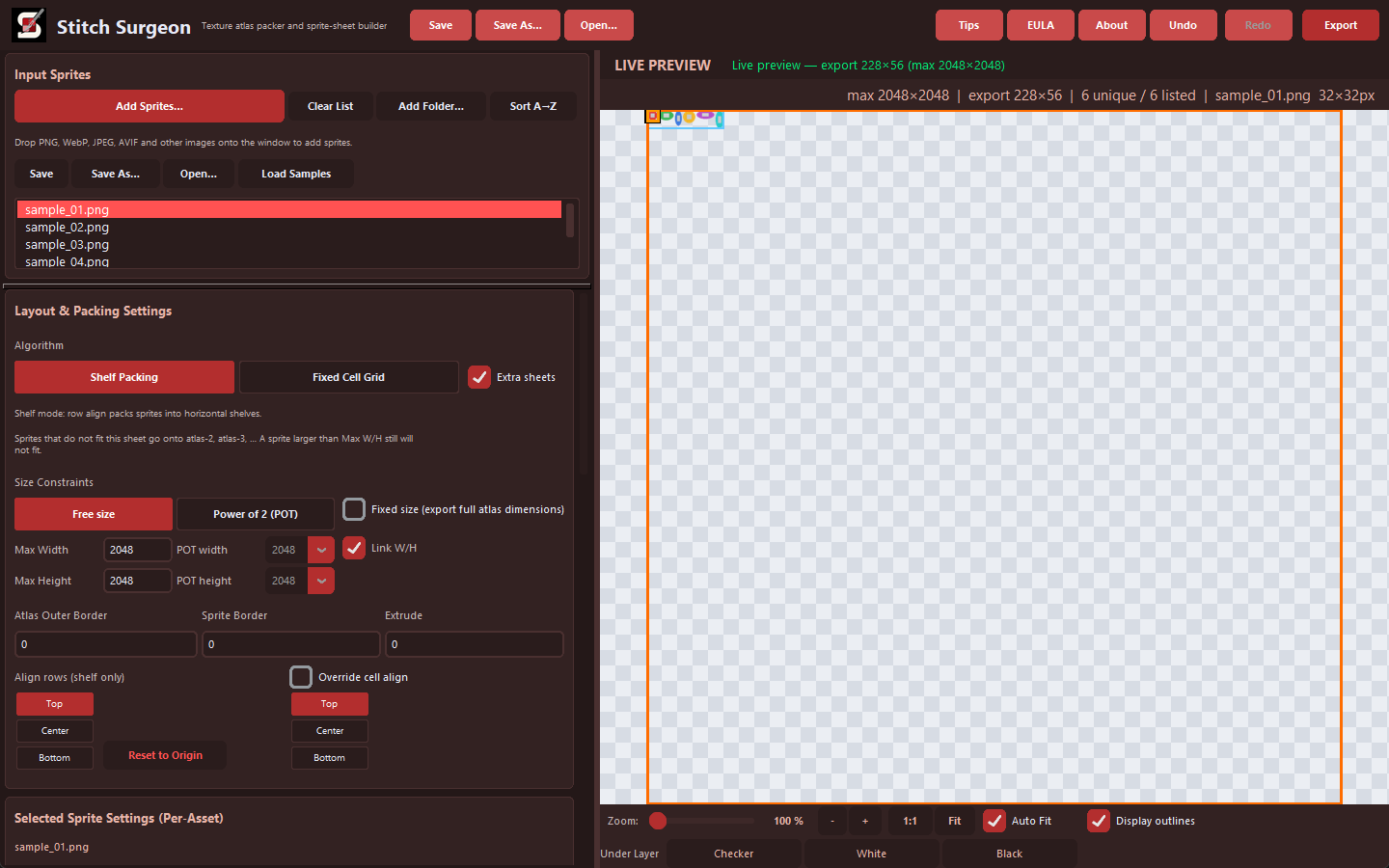
- Watch LIVE PREVIEW on the right — zoom with the wheel, pan with the middle mouse button.
- Optionally enable Export JSON metadata for Phaser-style hash loaders. Unity and Godot typically slice the PNG instead.
- Click Export in the toolbar or Build & Export Atlas at the bottom of Export Options, then pick a folder. The image (and JSON) are written separately from saving the project.
Save often with Ctrl+S. That stores settings + sprite paths as .atlas.json, not the atlas image itself.
4. UI overview

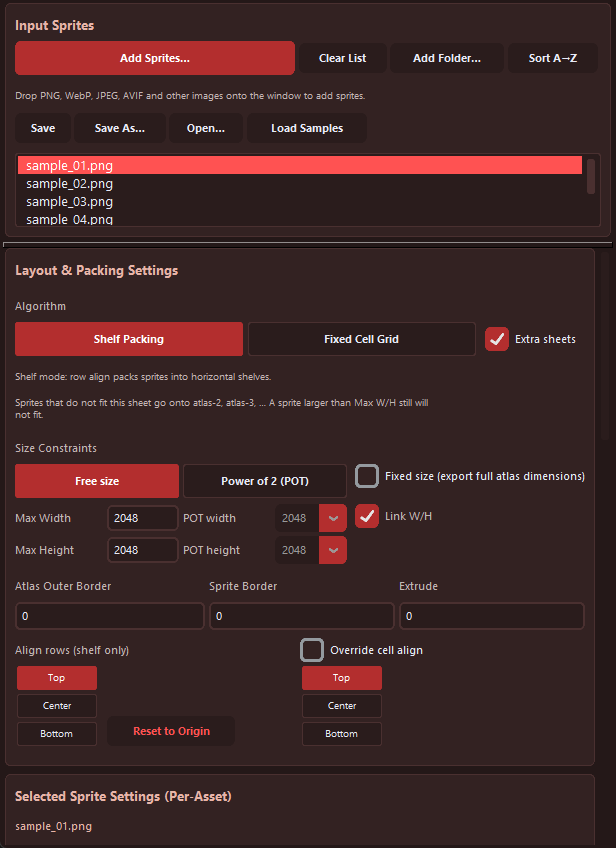
The default window is 1440×900. A larger monitor helps; the left column scrolls independently of the preview.
5. Adding sprites
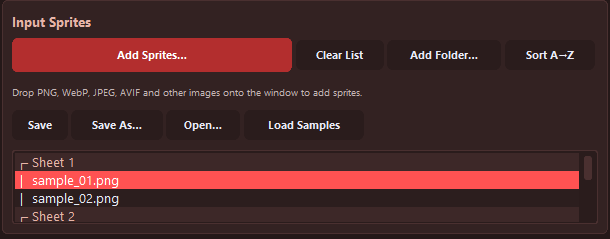
- Add Sprites… — one or more files.
- Add Folder… — walks a folder and takes supported images.
- Drag and drop onto the window (Windows installer build).
- Load Samples — try packing without your own art.
- Clear List / Sort A→Z — empty or sort the stack.
Supported import: .png, .jpg / .jpeg, .webp, .bmp, .tga, .tif / .tiff, .gif, .avif, .pvr, .ktx2. Animated GIF / AVIF / WebP use the first frame. GPU .pvr / .ktx2 decode through the bundled PVRTexToolCLI.
List status shows unique vs listed. Marks:
- ≡ — alias (identical pixels; packed once, JSON still lists every name)
- ⚙ — sprite has overrides (scale, pivot, cell align…)
- Overflow — sprite does not fit any sheet (larger than Max W/H, or Extra sheets is off). Listed under ┌ Overflow when extra sheets are in use.
- With extra sheets on, the list groups rows under ┌ Sheet 1, ┌ Sheet 2, …
6. Selection and reorder
- Click a list row or a sprite in the preview to select it. Click empty preview space (or empty space under the list) to clear the selection.
- When several sprites are selected, click one list row to keep only that sprite (Shift / Ctrl still add or toggle).
- In preview, Shift+click or Shift+lasso (drag empty space) adds to the selection.
- Drag in the list or in the preview to change packing order.
- Delete or Backspace removes the selection from the project (does not delete files on disk).
- Escape cancels an in-progress lasso or drag.
7. Layout and packing
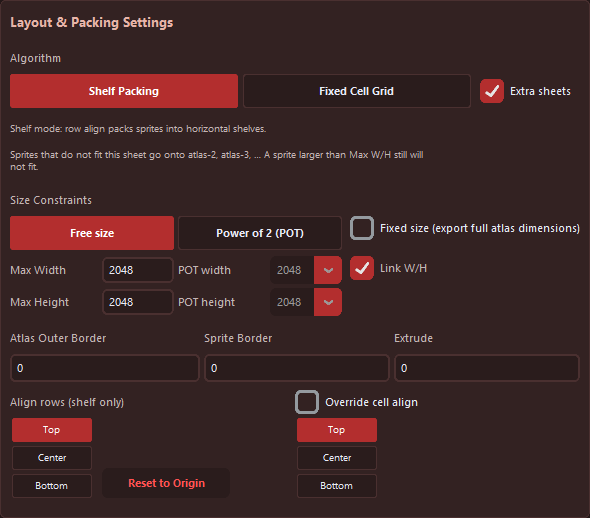
7.1 Modes
| Mode | When to use it |
|---|---|
| Shelf Packing | Mixed sizes. Rows fill left to right; leftover width starts a new shelf. |
| Fixed Cell Grid | Equal cells. Icons, tiles, or frames that should sit on a regular grid. |
The same row has Extra sheets (on by default). Leftovers go onto atlas-2, atlas-3, … The first time extra sheets appear, a dialog asks Extra sheets (keep filling) or One sheet (turn Extra sheets off; leftovers stay as overflow on the first atlas). You can tick Extra sheets again on that row later. A sprite larger than Max W/H still will not fit.
7.2 Size limits
- Free size — the sheet grows up to Max Width × Max Height.
- Power of 2 (POT) — 512, 1024, 2048, 4096, 8192, 16384. Link W/H for a square POT.
- Fixed size — export uses the full atlas dimensions even if sprites do not fill the sheet.
7.3 Padding
- Atlas Outer Border — empty margin around the whole sheet.
- Sprite Border — gap between sprites.
- Extrude — repeats edge pixels (helps against GPU filter bleed). Engine max typically 32 px.
7.4 Shelf only
Align rows — top / center / bottom in the shelf when heights differ.
7.5 Fixed-cell only
- Cell width × height, Auto, Auto-max, Fit (scale the sprite into the cell).
- Global 9-grid alignment, plus per-sprite override and offset X/Y.
8. Selected sprite and features
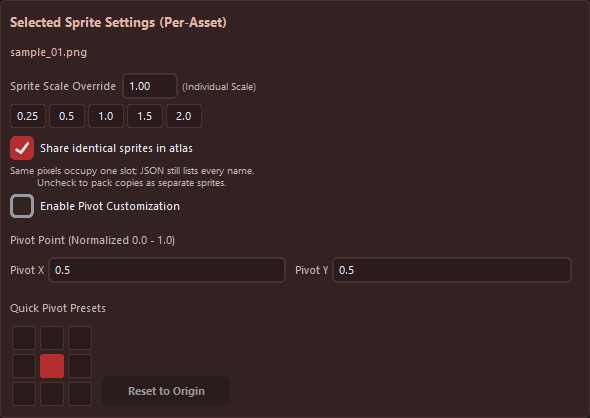
- Sprite Scale Override — shrink or enlarge one sprite before packing (presets 0.25–2.0).
- Share identical sprites in atlas — same pixels occupy one slot; JSON still lists every name. Uncheck to pack copies separately.
- Enable Pivot Customization — normalized pivot X/Y (0–1) with a 3×3 preset grid. Written into JSON for engines that read
pivot. - Trim transparent pixels (Sprite Features) — crop to visible pixels before packing (smaller cells / tighter shelves).
9. Atlas Adjust
Hue, saturation, brightness, contrast (percent) and gamma (factor, e.g. 2.2) apply to the whole atlas in live preview and in the exported image. They do not rewrite your source files. Use Reset on a slider (or the card Reset) to return to defaults.
Color adjust is a preview of the export: what you see is what PNG / WebP / uncompressed PVR get. GPU compress still starts from this adjusted RGBA.
10. Live preview
The right canvas redraws when settings change. The status line reports export W×H, overflow count, or Extra sheets active when more than one atlas is packed.

- Mouse wheel zooms; middle-button drag pans.
- 1:1, Fit, Auto Fit — native or fitted view.
- Display outlines — sprite (and cell) guides.
- Under Layer — Checker, white, or black.
- Sheet pager — when Extra sheets packed more than one atlas, < Sheet i/n > sits on the right of the Under Layer row. Left is the previous sheet, right is the next. Hidden when there is only one sheet.
11. Projects, autosave, undo
- Ctrl+S Save / Ctrl+Shift+S Save As… →
.atlas.json(formatatlas-builder-project, version 2). - Saved projects store sprite paths relative to the project file when they share a drive. Move the
.atlas.jsonand its sprite folder together and Open still finds them. - Crash / dirty-close autosave drafts still use absolute paths (they are not meant to be copied between PCs).
- Ctrl+O opens a project. Missing paths produce a warning; remaining sprites still load.
- Closing a dirty project asks to save. Autosave can restore work after a crash (
%LOCALAPPDATA%\StitchSurgeon\in a packaged build). - Ctrl+Z / Ctrl+Y undo and redo packing and layout (not selection). History is capped (around 40 steps).
Build & Export Atlas writes the atlas image (and JSON). Saving the project does not export the sheet. Ship both.
12. Export
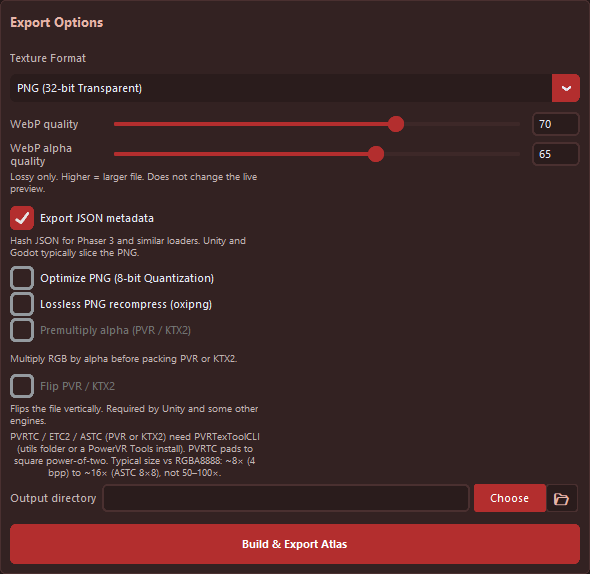
- Choose Texture Format (see table below).
- Optionally Export JSON metadata.
- For PNG: optionally Optimize PNG (8-bit Quantization) (pngquant) and/or Lossless PNG recompress (oxipng). Both ship in
utils/. - For GPU PVR / KTX2: optionally Premultiply alpha and Flip PVR / KTX2 (vertical flip — required by Unity and some other engines).
- Set an output folder, then Build & Export Atlas (or toolbar Export). On leftover overflow (sprites that still do not fit), confirm whether to continue. With Extra sheets on, extra files are
name-2,name-3next to the path you pick (same basename, matching JSON if enabled).
WebP quality / alpha quality sliders apply to WebP (Lossy) only. They do not change the live preview. Long exports can be cancelled from the progress control in the preview footer.
| Format | Notes |
|---|---|
| PNG (32-bit Transparent) | Default. Optional pngquant + oxipng. |
| WebP (Lossless) / WebP (Lossy) | Lossy uses the quality sliders. |
| PVR RGBA8888 / RGB565 / RGBA4444 | Uncompressed PVR. No CLI required. |
| PVR PVRTC / ETC2 / ASTC | GPU compress via bundled PVRTexToolCLI. PVRTC pads to a square power-of-two. |
| KTX2 ETC2 / ASTC | Same CLI. Flip and premultiply sit on this card. |
GPU PVRTC / ETC2 / ASTC (PVR or KTX2) need PVRTexToolCLI.exe in the app utils folder
(or a local PowerVR Tools install). Typical GPU size vs RGBA8888 is about 8× (4 bpp) to 16× (ASTC 8×8), not 50–100×.
This product includes components of the PowerVR Tools Software from Imagination Technologies Limited.
13. JSON metadata
When enabled, JSON uses the same basename as the atlas image. It is hash JSON (named frames with rects, trim, pivot). Phaser 3 and similar hash atlas loaders can consume it. Unity and Godot typically use the exported image (Sprite Editor / AtlasTexture), not this file as a native importer. Verify one frame in your engine before a batch.
meta.app—"Stitch Surgeon"meta.version— app version (e.g.1.2.0)meta.format— pixel format string (e.g.RGBA8888,PVRTC4,ETC2)meta.image,meta.size,meta.bounds,meta.scale,meta.overflowframes— each sprite:frame,spriteSourceSize,sourceSize,pivot,trimmed,rotated
14. Shortcuts
| Shortcut | Action |
|---|---|
| Ctrl+S | Save project |
| Ctrl+Shift+S | Save As |
| Ctrl+O | Open project |
| Ctrl+Z | Undo |
| Ctrl+Y / Ctrl+Shift+Z | Redo |
| Delete / Backspace | Remove selected sprites |
| Escape | Cancel lasso / drag |
| Shift | Add to preview selection |
| Middle mouse | Pan preview |
| Mouse wheel | Zoom preview |
15. FAQ and tips
Sprites do not fit
Keep Extra sheets on (same row as Shelf / Fixed Cell) to write extra atlases. If you picked One sheet in the dialog, tick Extra sheets again there. Increase Max Width/Height, use a larger POT, lower scale, or enable trim. A sprite larger than Max W/H still will not fit. Overflow lights up in the list under ┌ Overflow.
Filtering / halo on edges
Raise Extrude and a little Sprite Border. If the engine requires POT, use it.
Unity PVR / KTX2 looks upside-down
Enable Flip PVR / KTX2 on the Export card before you build.
PVRTC sheet is larger than expected
PVRTC always pads to a square power-of-two. That is a format constraint, not a packing bug.
Drag-and-drop does nothing
Use Add Sprites… / Add Folder…. The shipped Windows build supports drop onto the window.
Optimize PNG does nothing
pngquant / oxipng live in utils/ next to the app. If they are missing, export still writes a 32-bit PNG and the status line says so.
GPU export says CLI not found
Place PVRTexToolCLI.exe in utils/ (the installer already does this). Uncompressed PVR still works without it.
Project opened empty
Source files moved. Put them back, or add sprites again and Save As a new project. Relative paths only help if the project file and sprites moved together.
Crash log
Packaged build: %LOCALAPPDATA%\StitchSurgeon\error.log. Dev run: .atlas_builder_data\error.log.